Getting Started with Rally
Save time · Grow returns · Continuously improved strategy
New to automated trading? That's completely fine.
Just follow the steps below — by the end, Rally will be working for you.
The whole flow at a glance · 5 minutes
Before you start
- An email address and a password you'll use (8+ characters — overly common or previously breached passwords are blocked automatically)
- An LBank exchange account (if you don't have one, we'll walk you through it during signup)
- An LBank futures wallet funded with USDT (minimum 200 USDT)
Sign up, verify email & accept risk disclosure
Create your account, verify your email, and confirm you understand the risks. Email verification is required before you can move on to the next step.
- Enter your email and password (8+ characters).
- Read the disclosure below and check all 3 boxes.
- Futures trading carries significant risk
- Returns are not guaranteed
- Investment decisions and their outcomes are your own responsibility
- Click Sign up and you'll land straight on the onboarding screen.
- Right after signup, a verification email is sent. You must click the link in that email before you can move on to the next step (connecting your exchange key).
Connect your LBank key
For Rally to place orders on your behalf, you need to issue an access 'key' from the exchange and connect it. This step is the least familiar, but just follow along.
① Fund your LBank Futures wallet with USDT
Prepare your trading funds before creating an API key. To pass Rally's connection check, your available Futures balance must be at least 200 USDT.
- If you already have USDT on another exchange or wallet, open Deposit → Deposit Cryptocurrency on LBank, select USDT and the deposit network, then send funds to the displayed address.
- Deposited USDT first arrives in your Spot Account. Open Assets → Transfer and move USDT from Spot to Futures. Transfers between LBank accounts are free.
- Confirm that your LBank Futures wallet shows at least 200 USDT available, then continue to API key creation.
② Create an API key on LBank
This works the same whether you already have an LBank account or you're signing up for the first time.
- Log in to LBank → go to API Management. (Clicking the issuance guide link on the Rally screen walks you through it with screenshots.)
- When creating the key, be sure to check Trade and Futures, and make sure Withdraw is switched off.
③ Add the server address (IP) to the allow-list
LBank lets you restrict requests to an allowed IP address. You need to add Rally's server address here for the connection to work.
- In LBank's API settings, enter the address below exactly as shown in the 'IP whitelist' field.
- Rally's outbound server IP is fixed at 49.161.210.215. (The same address is also shown on the Rally key-connection screen, with a copy button.)
④ Enter the key in Rally and test the connection
- Paste the API Key and Secret you created on LBank into the Rally screen.
- Clicking connect runs 3 automatic checks. A ✓ on each item means success.
- Permission check — confirms the key is trade-only
- Balance check — confirms your futures wallet has at least 200 USDT
- Address check — confirms the IP whitelist was set up correctly

Set your loss limits
Before starting strategies, decide in advance how much loss is too much. Once you hit the limit, Rally stops automatically even if you're not watching the screen.
- Base margin and daily max loss — enter your base margin and set the daily limit from 1–50%.
- Per-trade max loss — set each trade's loss limit to 0.5–20% of the base margin.
Start strategies — review automatic setup
Rally automatically loads the currently validated reference strategy setup. You only review the margin per strategy and the risk disclosure before starting.
The only strategy currently offered is ICT (smart money) structure analysis. It places orders in advance at levels where large players are likely to move, takes partial profit as price moves in its favor, and shifts the stop to breakeven to protect what's already been earned.
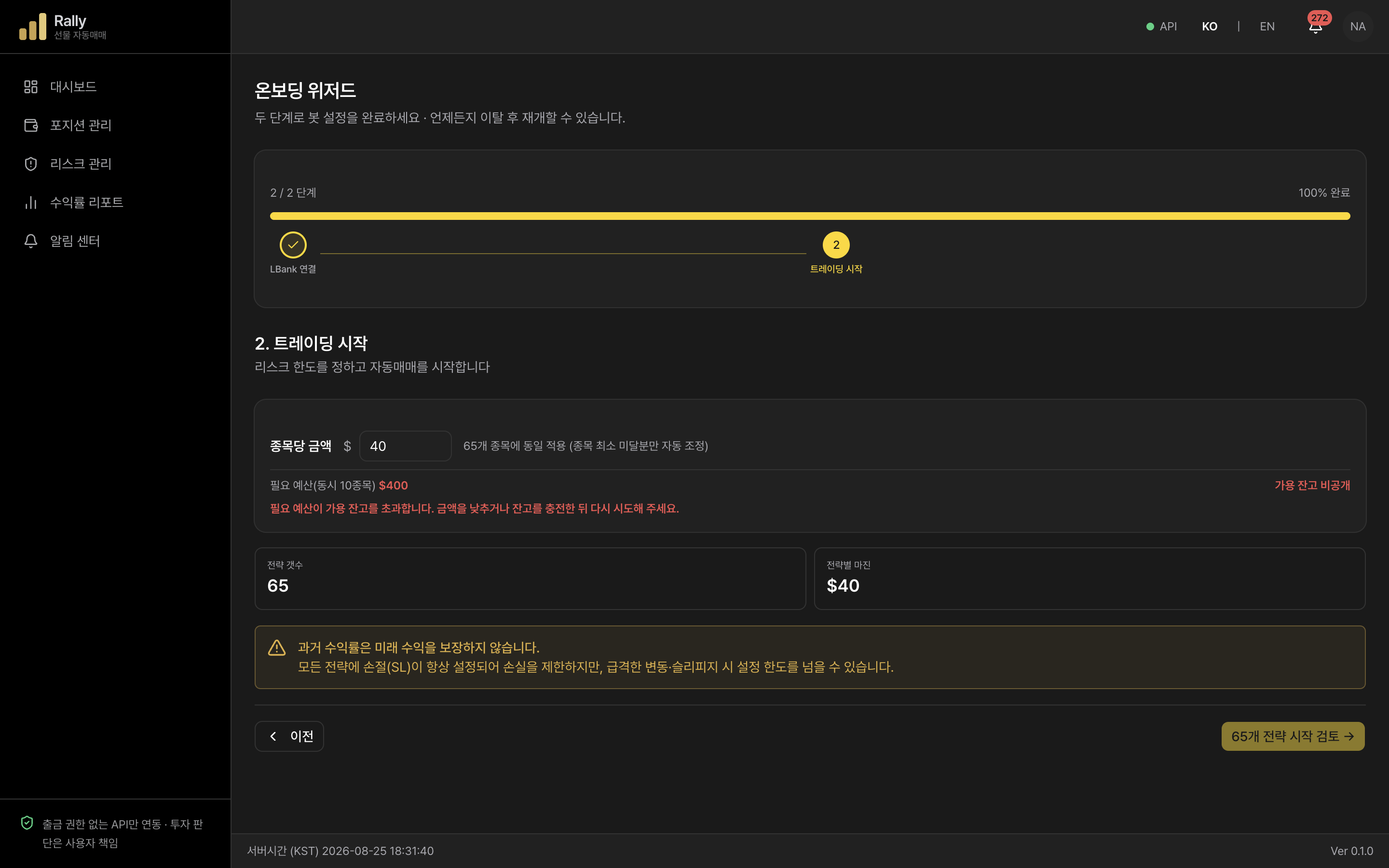
Enter the amount per symbol once and Rally applies it across every currently validated strategy. Symbols and analysis modes come from the reference strategy setup automatically.
- The screen keeps it simple by showing only the strategy count and margin per strategy.
- Required funds are calculated from the number of positions that may be open at once and compared directly with your available LBank balance.
- Leverage is fixed at 10x; amounts below a symbol's minimum margin are raised automatically.
The final confirmation screen
Review everything one more time before starting with real funds.
- Check the strategy count, margin per strategy, weighted effective leverage, and futures risk disclosure.
- The Start now button activates only after you check the risk-disclosure agreement. Once clicked, strategies start one at a time.
What happens after you start?
Rally starts placing reserved orders on the exchange in advance. All you need to do is watch.
Orders going in 'one at a time' is normal
Exchange rules only allow one order every 10 seconds. So Rally honestly shows progress like "3 of 5 orders registered" — if everything doesn't register at once, nothing is broken.
What you'll check daily — the dashboard
The screen you see right after logging in gives you everything at a glance.
- P&L overview and wallet balance (margin in use · margin available)
- Current positions · pending orders · stop-loss/take-profit status (organized by tab)
- Recent fills and the notification/error log
Get notified on your phone (optional)
Connecting Telegram lets you get important updates straight to your phone. That said, it doesn't notify you of every single fill — only meaningful events like position entries, take-profits, and stop-loss triggers. You won't get pinged for every minor fill, so silence doesn't mean something's wrong.
How to connect — one deep link, done
- Tap Connect Telegram in the Notification Center and you'll be taken straight to a Telegram deep link carrying a one-time linking code.
- In the Telegram chat that opens, just tap Start to finish linking. The code is only valid for 10 minutes — if it expires, go back to the Notification Center and tap the button again for a new one.
